
Install and activate dbSlice
Microsoft Store or winget · purchase · activation code
Install the free version, buy a license, and activate the full version with the code from your purchase e-mail.
Step 1
Install the free version from the Microsoft Store
- Click Get it from Microsoft Store.
- In the Store, click Get / Install. The Store installs and updates dbSlice for you; the app is signed by Microsoft.
- Open dbSlice from the Start menu.
Without a license the app opens in evaluation mode: Data view, Compare structure, connections and Preferences are free; Export and Generate code work in some formats; Synchronize, Synthetic data and the CLI need a license.
Step 2
Or install from the command line with winget
winget install --id 9PMS69X1T53Z -e --source msstoreOn first use winget may ask you to accept the Store source agreements; type Y. For a silent install add
--accept-package-agreements --accept-source-agreements.Error 0x80073D21?
Error 0x80073D21 means Windows is set to save new apps on a drive other than C:. Open
Settings › System › Storage › Advanced storage settings › Where new content is saved, set New apps will save to to C:, and run the command again.Step 3
Windows Server
The Microsoft Store is not available on Windows Server: try the free version on a Windows 10/11 machine.
What you need: Windows 10/11 or Windows Server (x64), and network access from that machine to your databases.
Step 4
Buy a license
- Open Pricing and choose your edition (Desktop, Windows Server or Linux Server Edition).
- Desktop and Windows Server: pay online with Paddle (card or the methods Paddle offers in your country). Linux: through our team.
- You receive an e-mail with your activation code, usually in a few minutes. Check spam if it does not arrive; write to support@dbslice.net if you can't find it.
See pricing → 14-day money-back.
Step 5
Activate the full version
- In dbSlice, open
Help › About dbSlice. - In Activation, type the license e-mail and the activation code from your purchase e-mail.
- Click Activate. The license is bound to this computer and is checked locally; it does not depend on our server to keep working.
No internet on that computer?
Click Trouble activating? Use manual activation, then Generate activation request. Send the request to support@dbslice.net and paste or import the license you receive; it comes bound to that computer.
 123
1 license e-mail · 2 activation code · 3 Activate 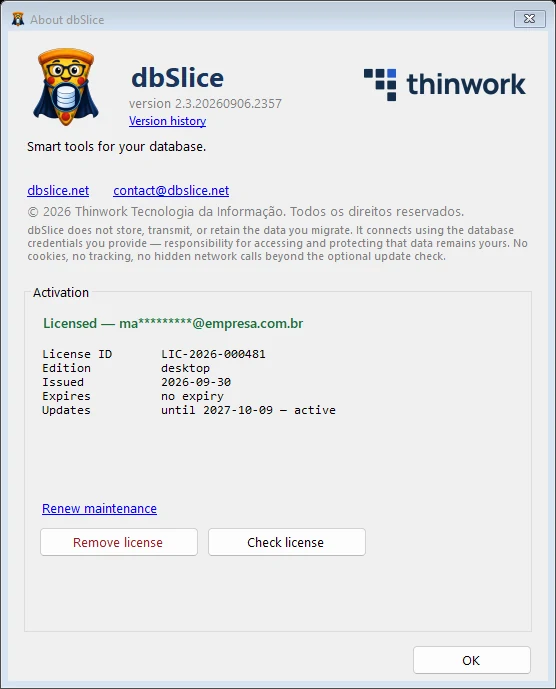
After activation: licensed - In dbSlice, open
Step 6
What activation unlocks
Synchronize (six modes, including Postback), Synthetic data, the CLI and scheduled jobs, all export formats. The GUI of the version you bought is yours for good on Desktop and Windows Server; the CLI, scheduled jobs and updates work for 12 months from purchase, and after that they stop unless you renew maintenance.
FAQ
I installed from the Store. Do I need to reinstall after buying?
No. The Store version activates with the same code.
Can I move my license to another computer?
Yes. In dbSlice, open Help › About dbSlice and click Remove license. That frees the activation, and you can activate the same code on another computer of the same edition: a Desktop license on another desktop, a Windows Server license on another Windows Server.
Where do I find my activation code again?
In the purchase e-mail; or ask support@dbslice.net with the purchase e-mail address.