
Download dbSlice
Updated November 2026
Free to start: without a license it opens as dbSlice Free. No sign-up to download.
Your system Windows 64-bit
This download is for Windows 64-bit. On your phone? Send the link to your e-mail ↓
Download EXEor install from the Microsoft Store ↗
New to dbSlice? It comes with a test database, so you can try every function right after installing. How the test database works →
On your phone? Send the link to your e-mail
dbSlice runs on Windows. Get the install link on your computer.
We e-mail you the Microsoft Store link and the winget command. Open it on your Windows PC.
Windows
or in a terminal:
winget install --id 9PMS69X1T53Z -e --source msstorechoco install dbslice- Digitally signed by Thinwork Tecnologia da Informação (SSL.com OV certificate)
- SHA-256 checksum published
- Microsoft Store version verified by Microsoft
- No sign-up or login to download
Install
- Download dbslice.exe.
- Run dbslice.exe from your Downloads folder.
- Done. Without a license, dbSlice opens as dbSlice Free.
Updates: dbSlice tells you when a new version is out and updates itself. Your settings stay.
System requirements
- Windows 10 or 11, 64-bit (x64)
- Windows Server, 64-bit (x64): direct download only, because Windows Server has no Microsoft Store
- Network access from that computer to your databases
Did Windows show a warning or an error?
Windows showed “Windows protected your PC” (SmartScreen)
Click More info, then Run anyway. Our signing certificate is new, and this notice goes away as more people download it.
Microsoft Store error (disk or account)
Use the direct download above: it does not depend on the Store.
Microsoft Store or winget: error 0x80073D21
This affects 1–2% of installs. Error 0x80073D21 means Windows is set to save new apps on a drive other than C:. Open Settings › System › Storage › Advanced storage settings › Where new content is saved, set New apps will save to to C:, and run the command again.
Is the Microsoft Store blocked at work?
If you got the install link by e-mail, just reply to that e-mail. Otherwise, write to support@dbslice.net or use the contact form, and we will help.
Windows or my antivirus warned me during install. Is that normal?
It can happen with the direct download from the website. Installing from the Microsoft Store or with winget shows no warning, because the Store delivers a package signed by Microsoft:
winget install --id 9PMS69X1T53Z -e --source msstoreThe installer on the website is signed by Thinwork itself, so two things can happen:
- SmartScreen shows "unknown publisher". Click More info › Run anyway.
- An antivirus flags the file. With a signed installer from dbslice.net, this is usually a heuristic false positive: antivirus products give new files with few downloads a low reputation score.
If your antivirus flags it:
- Check the signature: right-click the file › Properties › Digital Signatures. The signer must be "Thinwork Tecnologia da Informacao". If there is no signature or the name is different, delete the file and download it again from dbslice.net.
- Report the false positive to your antivirus vendor, so it reviews the file and updates its detection. For Microsoft Defender: microsoft.com/wdsi/filesubmission.
- Or install from the Microsoft Store or with winget instead.
Still in doubt? Write to contact@dbslice.net with the antivirus name and the alert text.
The in-app update says the file failed verification (unexpected publisher). What do I do?
Since November 2026 dbSlice is signed with a new Thinwork digital certificate (SSL.com). Versions from before this change do not recognize the new signature and refuse to update from inside the app. Just download dbSlice again at dbslice.net/download and replace the executable: your connections and settings are kept. This happens only once.
After installing: buy and activate
Step 1
Buy a license
- Open Pricing and choose your edition (Desktop, Pro, Unlimited (Server) or Linux Docker).
- Desktop, Pro and Unlimited (Server): pay online with Paddle (card or the methods Paddle offers in your country). Linux Docker: through our team.
- You receive an e-mail with your activation code, usually in a few minutes. Check spam if it does not arrive; write to support@dbslice.net if you can't find it.
See pricing → 14-day money-back.
Step 2
Activate the full version
- In dbSlice, open
Help › About dbSlice. - In Activation, type the license e-mail and the activation code from your purchase e-mail.
- Click Activate. The license is bound to this computer and is checked locally; it does not depend on our server to keep working.
No internet on that computer?
Click Trouble activating? Use manual activation, then Generate activation request. Send the request to support@dbslice.net and paste or import the license you receive; it comes bound to that computer.
 123
1 license e-mail · 2 activation code · 3 Activate 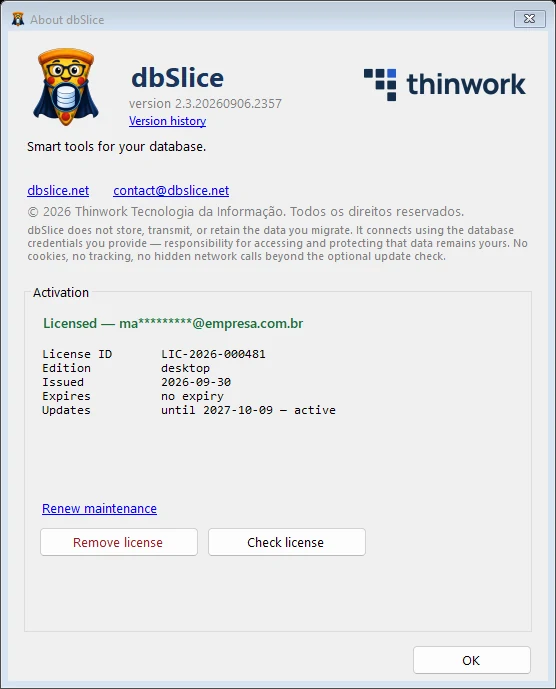
After activation: licensed - In dbSlice, open
Step 3
What activation unlocks
Desktop removes the 100-row limit and unlocks sync, cloning, the replicator, compare data and every export format. Pro adds the CLI, scheduled jobs, sending data to APIs and queues, and run history. Unlimited (Server) adds queues and runs, the background engine as a service, the jobs API and MCP. On Desktop and Pro the program is yours for good; without maintenance after the 12 months included, updates, the CLI and scheduled jobs stop. Unlimited (Server) is an annual subscription.
FAQ
I installed from the Store. Do I need to reinstall after buying?
No. The Store version activates with the same code.
Can I move my license to another computer?
Yes. In dbSlice, open Help › About dbSlice and click Remove license. That frees the activation, and you can activate the same code on another computer. Desktop and Pro licenses run on Windows 10/11; an Unlimited (Server) license runs on Windows Server or Windows 10/11.
Where do I find my activation code again?
In the purchase e-mail; or ask support@dbslice.net with the purchase e-mail address.
Release notes → Linux/Docker and macOS: contact us.