
After purchasing a dbSlice license, use the email address associated with the purchase and the activation code delivered to that address to activate the application on your computer.
This guide walks through the activation screen, explains what to enter, and helps you resolve the issues covered in the original manual. You can complete the process from the dbSlice interface.
Quick path: Open dbSlice → Help → About dbSlice → enter your License e-mail and Activation code → select Activate → wait for confirmation. On a computer without internet, use Generate activation request instead (section 6).
1. Before you start
Have the following ready before opening the activation screen:
| What you need | How it is used |
|---|---|
| dbSlice installed on your computer | Open the application to access the activation form. |
| Your purchase email | Locate the activation code delivered after your purchase. |
| The exact license email address | Enter the same address used for the purchase. |
| Your activation code | Copy the complete code from the purchase email. |
| An internet connection | Connect the application for online activation. On a computer without internet, see section 6. |
Keep your activation code private. Do not include it in public screenshots, articles, or shared examples. The illustration below shows a demonstration license with the e-mail partly hidden, not a customer's details.
2. Open the activation screen
- Open dbSlice as usual.
- From the top menu, select Help, then About dbSlice.
- In the Activation section, locate License e-mail and Activation code.
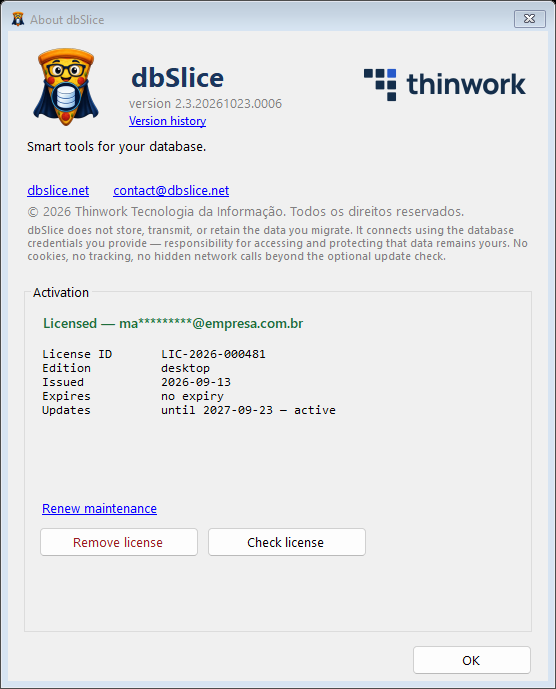
| Control | Purpose |
|---|---|
| License e-mail | Identifies the email address associated with the purchased license. |
| Activation code | Accepts the code received in the purchase email. |
| Activate | Submits the entered details for activation. |
| Trouble activating? Use manual activation | Opens the alternative activation workflow indicated on the screen (section 6). |
| Generate activation request | Creates the request that support turns into a license for a computer without internet. |
| Check license | Shows the current state of your license. |
| Remove license | Removes the license from this computer, which frees it for another computer or for a refund (section 9). |
| Renew maintenance | Opens the page to renew the maintenance year (section 8). |
3. Enter the purchase details
- In License e-mail, enter the exact email address used for the purchase. Check for accidental spaces before or after the address.
- Copy the activation code from the purchase email and paste it into Activation code. The manual notes that codes usually begin with
DBSL-. Copy the full code without changing its letters, numbers, or hyphens.
Use the values from your own purchase email. The DBSL- prefix alone is not an activation code, and this guide does not provide a sample key to submit.
Before proceeding, check that both fields are filled in and that the code was copied completely.
4. Activate and confirm
- Select Activate. Keep dbSlice open while it processes the request and displays the result.
- When the success message appears, check the license status shown in the dialog. The manual describes this confirmation as unlocking dbSlice on the current computer.
The completed activation is confirmed by the application's success message and license status. Entering the details without selecting Activate does not complete the procedure.
If the application displays an error instead, use the relevant check below before trying again.
5. Troubleshoot activation
| Issue | What to check | Next step |
|---|---|---|
| Email mismatch | The address in License e-mail must match the purchase email exactly. | Correct the address, remove accidental surrounding spaces, and retry. |
| Code not found or not accepted | Confirm that you copied the activation code from the purchase email in full. | Paste it again without changing letters, numbers, or hyphens. Contact support if it is still rejected. |
| No internet connection | Online activation requires connectivity. | Restore the connection, or use the activation request in section 6. |
| Device limit reached | The supplied manual describes one activation per license. | Contact support@dbslice.net for help with your license and device situation. |
These checks follow the issues documented in the supplied manual. If the application displays a different error, record its wording and contact support rather than guessing at a different code or email address.
6. Activate a computer without internet
Select Generate activation request, send the request to support@dbslice.net, and paste or import the license you receive back. The license you receive is issued for that computer.
7. Does dbSlice need to stay online?
No. Once activated, dbSlice works on that computer without a permanent internet connection. It connects to the license service only occasionally, for example to pick up a maintenance renewal, and you can check the state of your license at any time with Check license in About.
If the license shown in About does not match what you purchased, contact support@dbslice.net before changing anything on the computer.
8. Maintenance and renewal
The desktop application is perpetual: the version you are entitled to keeps working. Maintenance (one year, renewable) covers the command line, Run now in Jobs, and updates.
- In the last 30 days of maintenance, dbSlice reminds you when the application opens, in job logs and reports, and in the job webhook.
- After you renew, the new date reaches computers with internet access on its own.
- On a computer without internet, after renewing, generate the request in About and ask support for the renewed license.
If maintenance ends without renewal, the application keeps working; the command line, Run now in Jobs and new updates require an active maintenance year.
9. Move to another computer or ask for a refund
To move the license, select Help › About dbSlice › Remove license on the old computer, then activate on the new one with the same code. For a refund, the license must be removed in the application (Help › About dbSlice › Remove license); if that computer has no internet access, support removes it.
10. Ask for help
For activation assistance, contact support@dbslice.net.
Explain which step failed and include the error message displayed by dbSlice. If you attach a screenshot, hide the license email and activation code first. Share purchase information only through the support channel when it is needed to identify the license.
A concise support message could use this structure:
Subject: dbSlice activation assistance

Hello dbSlice support,

I am trying to activate my purchased license.

Step where the issue occurs: [describe the step]
Message shown by the application: [enter the error text]
dbSlice version: [enter the version shown in About dbSlice]

Please advise on the next step.
This is a writing template, not a form to submit to the activation screen. It intentionally contains no activation code.
Activation checklist
- Opened Help → About dbSlice.
- Entered the exact purchase email without extra surrounding spaces.
- Pasted the complete activation code from the purchase email.
- Selected Activate and kept the application open.
- Received the success message and checked the displayed license status.
Source and useful links
This English web guide adapts the activation steps and troubleshooting guidance in the supplied dbSlice Activation Guide / Guia de ativação. The original has a bilingual introduction, Portuguese instructions on page 2, and English instructions on page 3. Sections 6 to 9 cover dbSlice 2.3 and are not in that manual. The screen image is a capture of the About dialog from the application.
The guide documents how to use the activation form. It does not submit an activation request, change a license, or expose a customer's purchase details.